PC troubleshooting
Fortnite controller not working on PC: input and building fixes
Troubleshoot a Fortnite controller on PC: check the connection, Ignore Controller Input, building problems and Lock Input Method as Mouse.
By FortRift Editorial Team · Published and checked · 4 min read
Quick answer
If Fortnite ignores your controller on PC, first confirm that the controller connects to Windows, then open Fortnite's Mouse and Keyboard settings and turn Ignore Controller Input off. If movement works but building does not, also check Lock Input Method as Mouse and turn it off. Test in an experience where building is allowed.
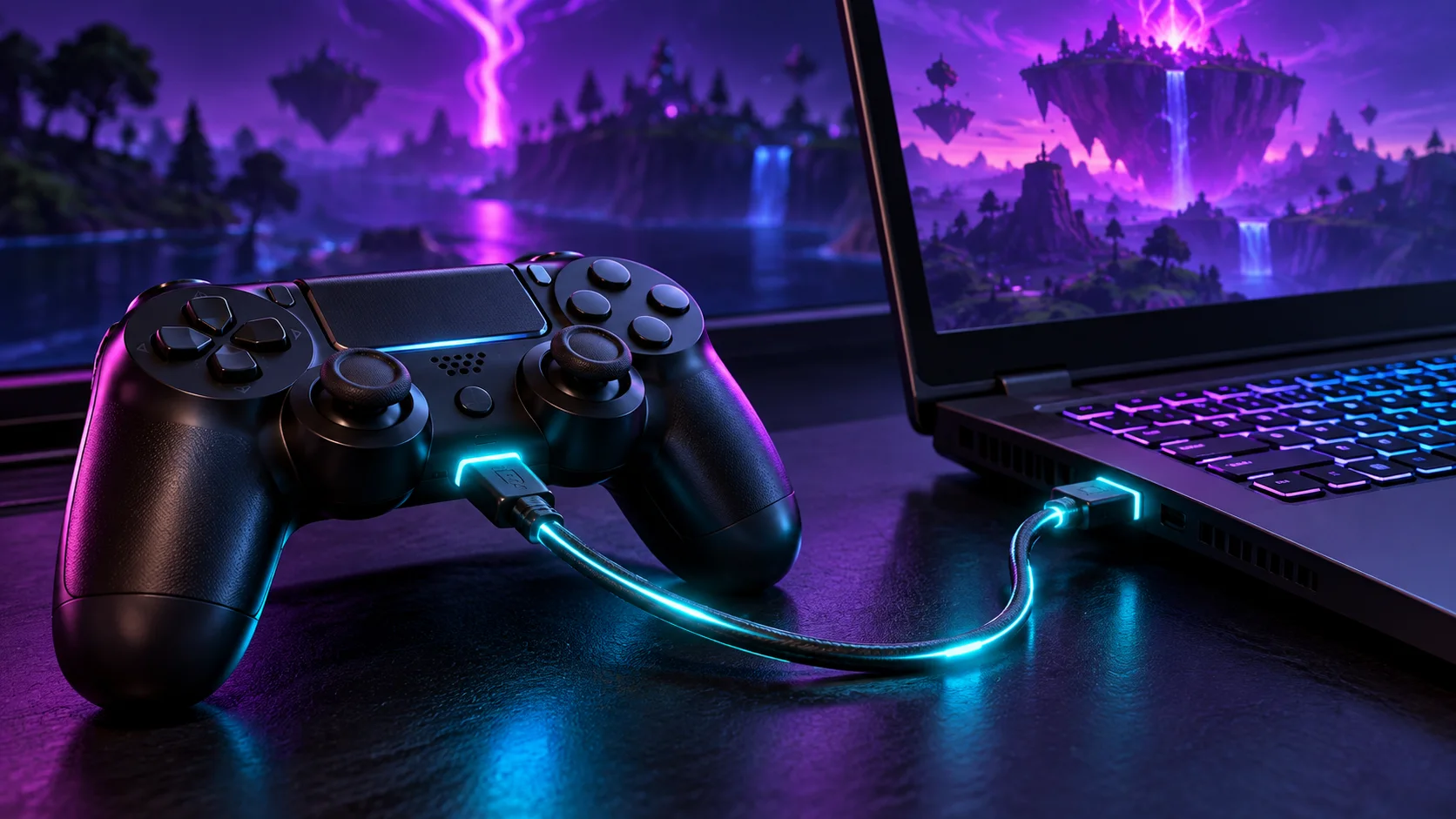
A powered controller is not proof of a working data connection.
Ignore Controller Input should be off when you want to use a controller.
A building-only problem needs a different check from a completely undetected controller.
| Symptom | First check | Why it matters |
|---|---|---|
| Controller is not detected anywhere | Cable, USB port, pairing and manufacturer support | Fortnite cannot fix a connection Windows does not receive. |
| Works in Windows but not Fortnite | Ignore Controller Input: Off | The game can be configured to ignore controller input. |
| Movement works, building does not | Building-enabled experience; Lock Input Method as Mouse: Off | Input locking and game-mode rules are separate causes. |
| Disconnects or shows unexpected inputs | Test one connection and one input tool at a time | A simpler setup helps isolate intermittent behavior. |
Start with a reliable physical connection
For a wired test, use a cable that supports data, connect directly to another USB port and avoid relying on the controller's charging light as your only evidence. Epic's troubleshooting specifically recommends checking hardware connections and trying another port.
If you normally connect wirelessly, compare with a supported wired connection when the controller model allows it. This is a diagnostic comparison, not a claim that every controller supports every PC connection method. Consult the device manufacturer's instructions for model-specific compatibility, pairing and firmware.
Find out whether Windows receives the controller
Check the device's connection in Windows and, where the manufacturer provides one, use its supported input test or configuration utility. Record whether buttons register outside Fortnite. This separates an operating-system or device problem from an in-game setting.
If the device is not recognized, follow the manufacturer's driver or firmware guidance. Epic also recommends updating or reinstalling the relevant device drivers. Use official support downloads rather than an unrelated driver bundle, and reconnect the device before retesting the game.
Connection → game input → build action
Connection
Confirm that Windows receives the controller.
Input allowed
Ignore Controller Input: Off.
Building
Supported mode + Lock Input Method as Mouse: Off.
Turn off Ignore Controller Input
Open Fortnite settings and choose the Mouse and Keyboard tab. Locate Ignore Controller Input and set it to Off, then apply the change. The setting lives under Mouse and Keyboard even though the symptom affects a gamepad, which makes it easy to overlook.
Return to the lobby and test a simple menu action, then movement in a suitable experience. If this restores input, keep the rest of the configuration stable. Changing sensitivity or graphics quality is not necessary to establish whether the controller is being accepted at all.
If you can move but cannot build
First confirm that you selected an experience where player building is enabled. Zero Build intentionally removes normal player building; a controller setting will not turn that rule off. Also check whether the experience has its own restrictions and whether your build action has a valid binding.
For a PC controller building problem, Epic directs players to the Mouse and Keyboard settings and to turn Lock Input Method as Mouse off. Apply the change and retest the same action. This is a separate option from Ignore Controller Input, so checking only one can miss the relevant cause.
Simplify an intermittent or conflicting setup
If input works briefly and then stops, test one controller and one connection method at a time. Keep the cable and port consistent during the comparison. Note whether the failure begins after reconnecting, switching windows or opening an input configuration application.
If you already use remapping or virtual-controller software, close one optional input tool at a time and test again. Do not assume a third-party remapper is required, and do not disable security tools to fix a controller. The aim is to identify a conflict in your existing setup, not to add several new layers at once.
Know when the problem is latency or a separate feature
A controller that responds with delay is not the same as an undetected controller. Compare in-game responsiveness with a simple menu action and note whether the entire game is stuttering. Use the PC performance guide if low frame rate is making all actions feel slow.
Working controls do not automatically configure a headset or cross-platform party. Use the voice guide for microphone problems. If you need support, include the controller model, Windows version, USB or wireless method, whether Windows receives input and the two Fortnite input settings you tested.
Your next steps
- Check the controller's supported connection and test another USB port if wired.
- Confirm that Windows receives input before changing game settings.
- Set Ignore Controller Input to Off in Mouse and Keyboard settings.
- For building-only failures, use a building-enabled experience and set Lock Input Method as Mouse to Off.
- Retest one connection and one optional input tool at a time, then record any remaining symptom.
Frequently asked questions
Why does my controller work elsewhere but not in Fortnite?
Check Ignore Controller Input in Fortnite's Mouse and Keyboard settings. If it is already off, isolate the connection and any existing input tools.
Where is Ignore Controller Input?
In Fortnite's Mouse and Keyboard settings tab on PC. Set it to Off to allow controller input.
Why can I move but not build with a controller?
Confirm building is allowed and your binding is assigned. Epic also recommends turning Lock Input Method as Mouse off for this PC issue.
Does a charging light prove the cable works for gameplay?
No. Confirm a data connection and actual input detection; power alone is not the same test.
Do I have to install a controller remapper?
Do not assume so. Start with the controller manufacturer's supported connection and Epic's input settings. Compatibility depends on the controller and connection method.