PC performance
Best Fortnite PC Settings for FPS: Performance Mode, Stutter and Input Delay
Build a Fortnite PC settings baseline, compare rendering modes and diagnose low FPS, stutter and input delay with a repeatable test instead of a promised FPS number.
By FortRift Editorial Team · Published and checked · 5 min read
Quick answer
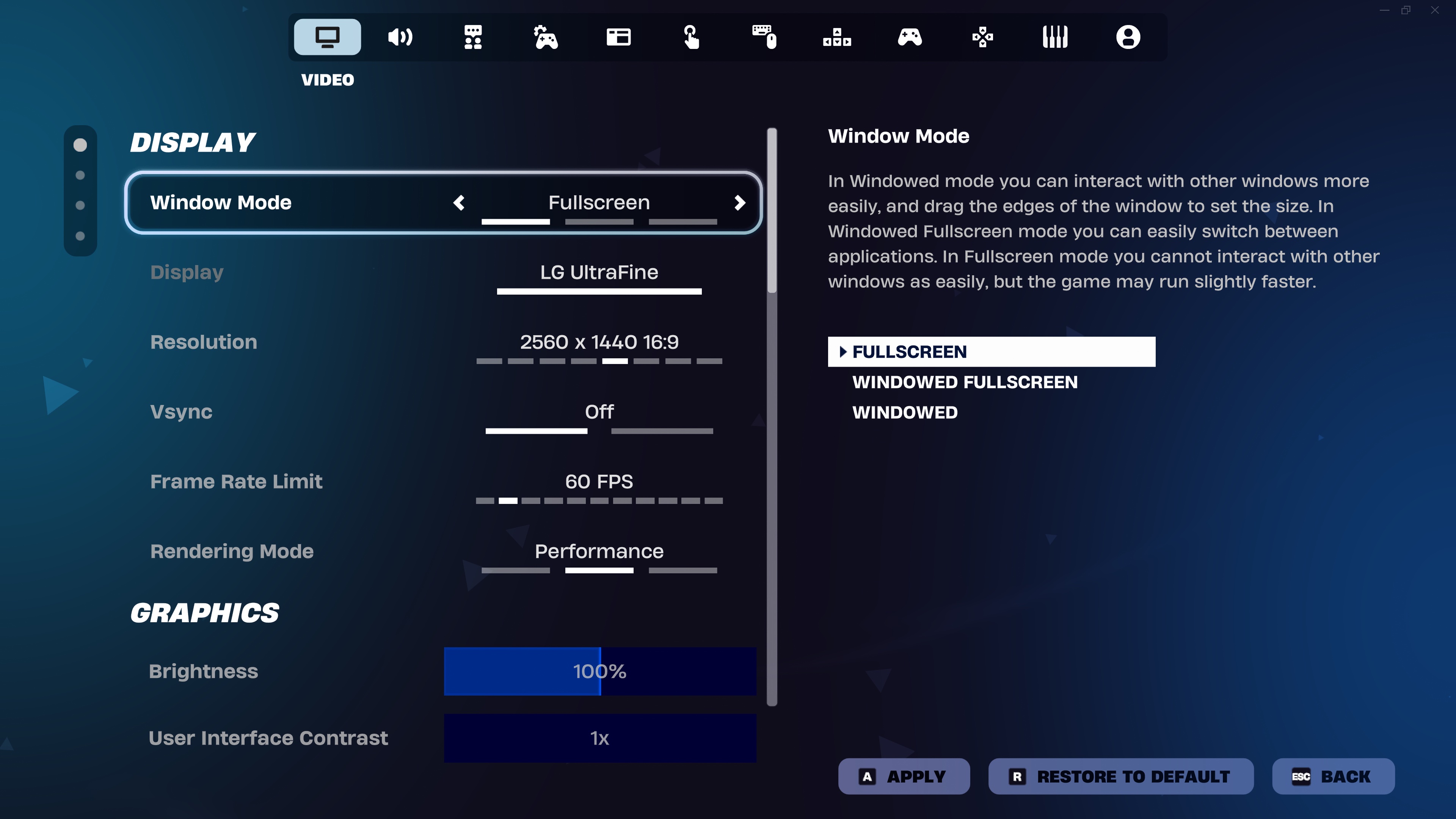
Start with Performance rendering mode, fullscreen, low visual detail and the FPS counter enabled. Apply changes and restart when required. Then test the same route and choose a frame-rate limit your PC can sustain. These are starting settings, not a guarantee of 144, 240 or 360 FPS.
Measure in a match, not only in the lobby.
Separate frame-rate problems from network lag.
Change one setting at a time and keep a rollback note.
| Setting | Starting point | What to check |
|---|---|---|
| Rendering mode | Performance | Restart and compare a repeatable gameplay route |
| Window mode | Fullscreen | Check responsiveness and whether your capture tools still work |
| 3D resolution | 100% initially | Lower gradually only if necessary; watch distant-object clarity |
| Textures and meshes | Low where available | Increase later if there is performance headroom |
| Frame-rate limit | A sustainable cap | Compare stability during fights, not the highest idle reading |
| V-Sync | Off for the initial latency test | Reassess if tearing is distracting |
| NVIDIA Reflex | Test On, then On + Boost if available | Compare on supported hardware; do not expect this menu on every GPU |
| Show FPS | On | Record results before and after each change |
1. Identify low FPS, stutter or network lag
Low FPS means your computer produces relatively few frames. Stutter means delivery becomes uneven: the game can report an acceptable average yet pause during a turn or a fight. Network lag is different; a character may snap back or an action may register late while the camera still moves smoothly. A graphics preset cannot be assumed to fix all three.
For a first diagnosis, record the symptom and when it appears. Does it start on landing, after several matches, while recording, or only when friends join? If the problem is connection-related, use the service status page and the packet-loss troubleshooting method before changing video quality.
2. Enable Performance mode and save a baseline
Epic’s support instructions place Rendering Mode in the Video settings. Select Performance, apply and restart Fortnite. The table is our test baseline, informed by Epic’s competitive settings guide; it deliberately treats settings as choices to verify on your machine. Available controls and names can vary with rendering mode and game updates.
Before changing anything, take screenshots of your current settings. Record the display resolution, refresh rate, selected renderer and frame cap. If a new configuration looks worse or feels less responsive, those notes make reverting straightforward. Do not install a configuration file from an unknown player merely because it promises a large FPS gain.
Three symptoms, three different checks
Low FPS
Low frame rate: test graphics settings.
Stutter
Uneven frame delivery: compare pauses and workload.
Network lag
Connection delay: check service status and your network.
3. Compare rendering modes fairly
Performance and a higher-detail renderer should be compared under the same conditions. Use the same display resolution, similar scene and the same background applications. Apply the renderer, complete any required restart, allow the scene to load and run the route more than once. Do not compare a quiet lobby in one mode with a crowded fight in another.
Our suggested test is a short repeatable circuit: move through one area, turn quickly, enter a building and perform a few normal actions. Note the typical frame rate, visible pauses and image clarity. Then repeat in an ordinary match. Keep the configuration that best matches your priorities; a synthetic high number is not useful if important objects become difficult to see.
4. Choose a cap and reduce input delay
A monitor’s refresh rate and a PC’s frame production are separate measurements. A 144 Hz screen does not prove the PC can hold 144 FPS in combat. Our recommendation is to compare an uncapped run with a realistic cap, then prefer the result with steadier delivery and acceptable responsiveness. There is no universal cap that wins on every system.
If available, test Reflex on supported NVIDIA hardware and compare V-Sync behaviour rather than changing everything at once. Keep the mouse, controller, display mode and test route the same. Otherwise, you cannot tell whether the change came from the graphics option or a different input setup. This guide does not claim to have benchmarked your hardware.
5. Investigate sudden FPS drops
Epic’s troubleshooting advice includes verifying game files and updating graphics drivers. In Epic Games Launcher, open Fortnite’s menu, choose Manage and then Verify. Obtain drivers from your hardware manufacturer. If the game suddenly changed after a patch, record the patch timing and exact symptom before assuming your normal settings are wrong.
Intel also identifies unnecessary background applications, recording and heat as possible performance factors. Test with a nonessential recording session closed and compare a fresh session with a longer one. If performance worsens over time, inspect ventilation and device temperatures using trusted tools. Do not disable security protections, apply registry packs or buy new parts before identifying the limiting factor.
6. Keep a useful before-and-after record
A useful result includes the device, renderer, resolution, cap, test route and the change you made. For example: ‘Same route, same background apps, textures Low instead of Medium; fewer pauses, slightly less detail.’ This is an example of a test note, not a published benchmark. Repeatable observations are more valuable than a single screenshot of a peak FPS counter.
Stop tuning once the game is stable enough for your purpose. If changing visual settings makes little difference, the issue may need a different diagnosis. For a failure to start rather than a performance problem, use the error-code library. For audio communication problems, use our voice-chat guide instead.
Your next steps
- Record current settings and describe the symptom.
- Apply the baseline and restart if the renderer changes.
- Run the same short route, then test normal gameplay.
- Adjust one setting and compare responsiveness, clarity and pauses.
- Keep the stable configuration and save the final settings.
Frequently asked questions
What are the best Fortnite settings for a low-end PC?
Start with the baseline above and test. The result depends on your hardware and the workload; no preset guarantees a particular FPS.
Should I use Performance mode or DirectX 12?
Compare the renderer options shown in your current game using the same scene. Choose based on measured stability and visual clarity on your PC, not an old universal ranking.
Why is my FPS high but Fortnite still feels laggy?
Check whether you mean uneven frame delivery, delayed input or network correction. A high average FPS does not rule out the other two.
Does lowering resolution always help?
No. Try it as a controlled comparison. If the limiting factor is elsewhere, a blurrier picture may deliver little practical improvement.
Should I copy a professional player’s settings?
Use them as a reference, then test on your own hardware, display and input device. Their setup is not a benchmark for yours.