Local multiplayer
How to Play Fortnite Split Screen on PlayStation and Xbox
Set up Fortnite split screen with two controllers and accounts, find compatible modes, and troubleshoot a missing second-player prompt on PlayStation or Xbox.
By FortRift Editorial Team · Published and checked · 5 min read
Quick answer
Fortnite local multiplayer is supported on PlayStation and Xbox in compatible experiences. Start in the lobby, connect a second controller, select the second player’s console account and complete the Epic account prompts. Then choose an experience marked for local players. PC, Nintendo Switch and mobile do not support this split-screen feature.
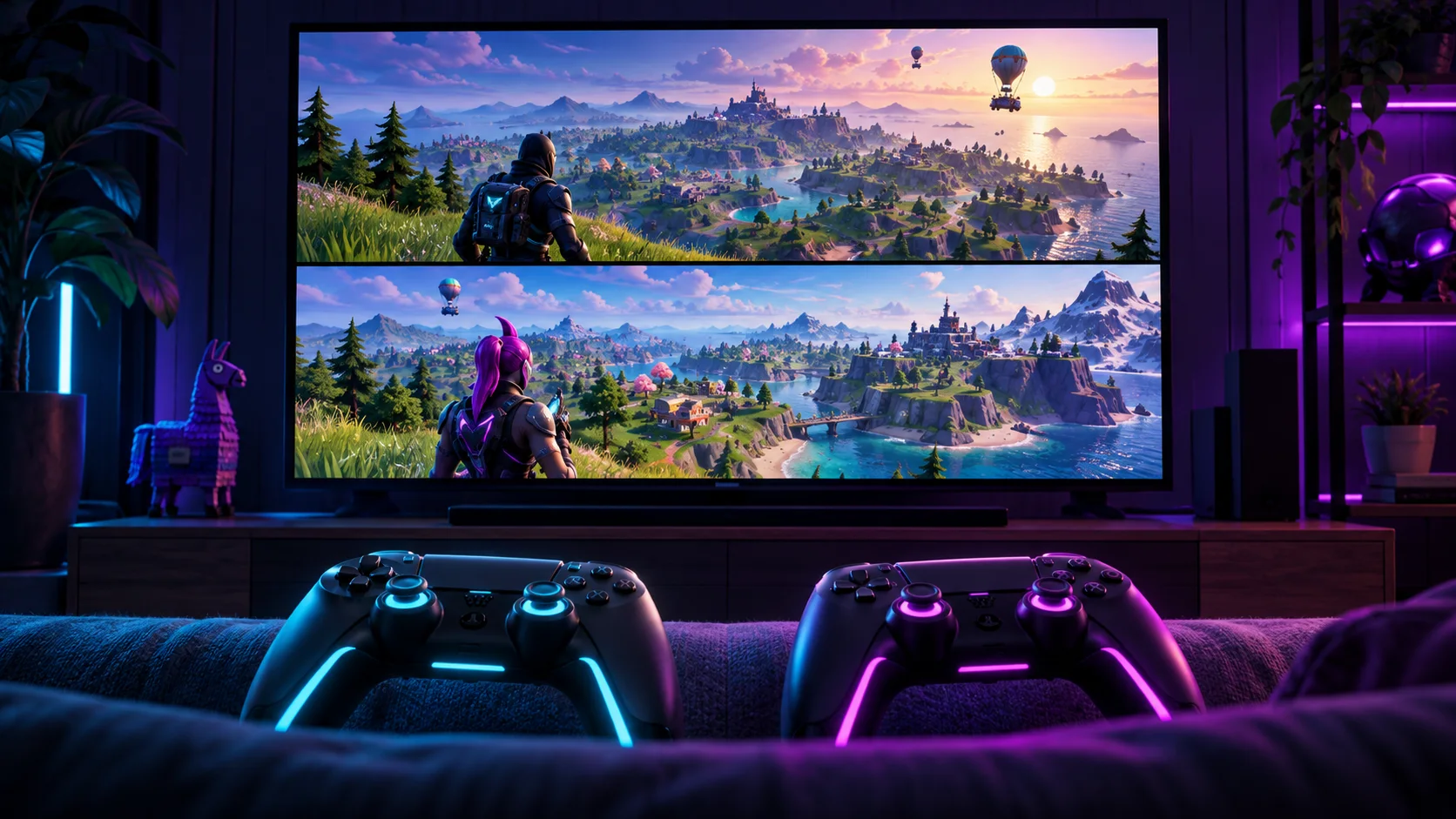
The second controller must be paired with the second player’s account.
Check the experience’s Local Players information.
An unsplit lobby does not mean the match setup failed.
| Question | What to check | Next action |
|---|---|---|
| PlayStation or Xbox? | A compatible experience and two controllers | Follow the lobby setup below |
| PC, Switch or mobile? | Epic does not support local split screen here | Use separate supported devices for an online party |
| Second account is a guest? | Guest and Quick Play accounts are unsupported | Select the second player’s normal console account |
| Lobby is not divided? | The split view is used in the match | Check that the second player joined, then launch a supported game |
| Mode refuses two local players? | Inspect Local Players in the game details | Choose an explicitly compatible experience |
| Session ends when a player leaves? | Local sessions end if one player exits or disconnects | Reconnect and return to the lobby together |
1. Prepare the controllers and accounts
Have both controllers charged or connected before opening Fortnite. Decide which console profile belongs to each player. Epic’s setup requires a second console account rather than a Guest or Quick Play account. If the second controller merely operates the first player’s menu, you have not yet confirmed two independent players.
Our recommendation is to complete account preparation before inviting other friends or starting a timed activity. The second player should recognise the account they select. If they normally play on another device, use the Epic account that holds their existing progress when prompted; choosing a new account casually can create confusion about an apparently empty Locker.
2. Join from the Fortnite lobby
Open Fortnite with the first player and stay in the lobby. Connect the second controller and select the second player’s console account. Follow the on-screen Epic account linking instructions. The second player should then appear in the lobby, and local multiplayer starts automatically when you enter a supported experience.
Use the prompt displayed by your current game rather than relying on a controller-button shortcut from an old video. Button labels and sign-in steps can change. Pause if the screen identifies the wrong account: verify the profile before completing a link. Do not unlink a working account simply to make the prompt disappear.
Two players, one shared display
Player 1
Controller + normal console account
Player 2
Second controller + separate console account
Shared session
Both in the lobby → choose a supported experience
3. Find a compatible mode
Epic directs players to Discover’s Great for Local Multiplayer row and the Local Players tag in Game Details. Its support page lists Battle Royale, Zero Build and LEGO experiences among the supported examples, while listing exclusions such as Solos and Ranked. Check the actual experience instead of assuming every game carrying the Fortnite name supports the same local setup.
For a first test, choose a clearly compatible experience with a simple objective. Get both players into a match before investigating favourite modes or custom maps. This separates an account or controller failure from a compatibility problem. If the test works, the basic local setup is working even if another selected mode does not accept it.
4. Understand the lobby and progress
Epic notes that the lobby and sub-menus are not shared split-screen views. Look for the second player’s presence and account, not two full menu panels. The game also requires matching language settings, and one player disconnecting or leaving ends the local session. These conditions can explain a setup that appears to work and then stops.
Treat each player’s identity separately. Before playing, ask both people to check their displayed account and familiar Locker items. After the session, review any expected quest progress on the relevant account. Do not assume a purchase, reward or inventory item is shared merely because two people are using one television. Read each offer or quest on its own terms.
5. Troubleshoot a missing second-player prompt
Start at the point where setup stopped. If the console does not recognise the controller, resolve pairing or charging first. If the controller works but controls player one, review which console profile is assigned. If player two appears but the mode will not start, check compatibility and language settings before changing the account.
Return to the lobby and attempt the sequence once with both controllers connected. Note the precise message if a sign-in or linking step fails. Reinstalling a large game is not our first recommendation for a missing prompt; it does not establish whether the second profile or selected mode was correct. Use the error-code library when a specific code appears.
6. Connection and shared-room checks
Local multiplayer still depends on a stable internet connection according to Epic. Sitting in the same room does not make Fortnite an offline game. If matchmaking fails for both people, check service status before assuming the second controller caused it. Record whether ordinary single-player matchmaking also fails.
For a comfortable session, sit where both players can read their part of the screen and agree who navigates the lobby. If friends on other devices cannot hear you, use the voice-chat checklist rather than repeating the split-screen setup. Keep a successful setup note with the console profiles and compatible experience so the next session starts quickly.
Your next steps
- Prepare two controllers and each player’s normal console account.
- Open Fortnite and remain in the lobby.
- Connect controller two and select the second player’s profile.
- Complete the Epic account prompts and confirm player two appears.
- Select an experience with local-player support and start the match.
- If it fails, identify whether the failure is pairing, account, mode or connection.
Frequently asked questions
Can I play Fortnite split screen on PC?
Epic’s current support page excludes PC from local split screen. Two controllers alone do not enable it.
Does Fortnite split screen work on Nintendo Switch?
Epic lists Nintendo Switch as unsupported for this local feature. Use separate devices and an online party where the experience supports it.
Why is the lobby not split into two screens?
Epic says the split view is used during matches, while the lobby and sub-menus are not shared. Confirm the second player joined before judging the setup.
Can the second player use a guest account?
No. Epic’s setup instructions exclude Guest and Quick Play console accounts.
Can we play every Fortnite mode together on one console?
No. Inspect the Local Players information for the chosen experience; support is mode-specific.
Does couch co-op work without internet?
No. Epic states that a stable internet connection is required for this local multiplayer feature.